# Installation issues (GPT for Excel – Autosheet)
## I can't sign in after installing
**Problem**: You have installed GPT for Excel – Autosheet and you have trouble signing in with Microsoft.
> **Solutions**
>
> - [Check which versions of Excel](https://autosheet.com/docs/gpt-for-excel/faq#which-versions-of-excel-are-compatible-with-this-add-in) and [which browsers](https://autosheet.com/docs/gpt-for-excel/faq#which-browsers-are-compatible-with-gpt-for-excel) are supported by this add-in.
> - Try using Excel for the web instead of the desktop version.
> - Try using Excel for the web in a private/incognito window.
> - If you're using a firewall or proxy, [whitelist the required domains](https://autosheet.com/docs/gpt-for-excel/troubleshooting/installation-issues#the-add-in-doesnt-load).
## The add-in doesn't load
**Problem**: If your organization uses a firewall or proxy, it may prevent the add-in from loading.
> **Solution**
>
> Ask your IT administrator to whitelist the following domains:
>
> ```
> *.autosheet.com
> *.gptforwork.com
> *.microsoft.com
> *.microsoftonline.com
> *.live.com
> *.office.com
> ```
## The add-in update doesn't complete
**Problem**: GPT for Excel – Autosheet shows an update prompt, but clicking **Update** does not complete the update. The same prompt appears every time you reopen the add-in.
> **Solution**
>
> This can happen when Office uses a stale cached version of the add-in. Clear the Microsoft Office cache to force Office to re-fetch the latest version:
>
> 1. Close all Office applications.
> 2. Follow [Microsoft's instructions for clearing the cache](https://learn.microsoft.com/en-us/office/dev/add-ins/testing/clear-cache).
> 3. Open Excel and try again.
>
> If the issue persists after clearing the cache, restart the computer and reopen Excel.
> **Note**
>
> Clearing the Office cache may reset some of your Excel application settings.
## Add-in not supported
`This add-in is only supported with your Microsoft 365 subscription license and is not supported with your Office license.`
The following table lists the **minimum versions of Microsoft Excel** compatible with the GPT for Excel – Autosheet add-in on different Microsoft Office platforms.
|  | Windows | macOS | Web |
| -------------------------------------------------------------------------------- | ------------------------------------------------------------------------------------------------------------------------------------------------------------------------------------------------------------------ | ------------------------------ | -------------------------------------------------------------------------------------- |
|  | **Microsoft 365 subscription:**
Version 2002 (Build 12527.20092)
**Retail perpetual:**
Version 2002 (Build 12527.20092)
**Volume-licensed perpetual:**
Excel 2021: Version 2108 (Build 12527.20092) | Version 16.35 (Build 20030802) | Supported on:
- Google Chrome (latest version)
- Microsoft Edge (latest version) |
[Which version of Excel am I using?](https://autosheet.com/docs/gpt-for-excel/faq#my-excel)
## I signed in with the wrong account
**Problem**: You signed in with the wrong account while installing GPT for Excel – Autosheet and need to switch to the correct one.
> **Solution**
>
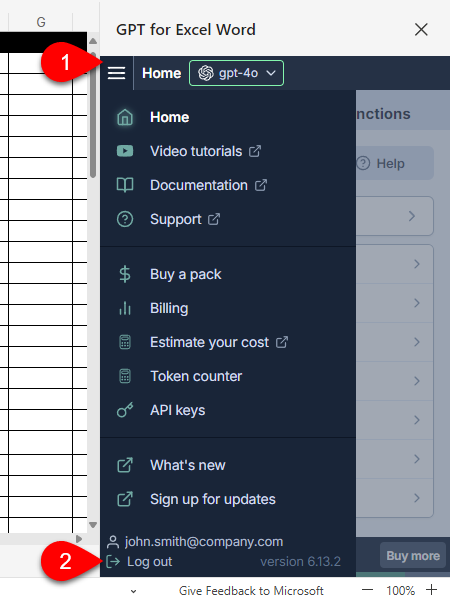
> Open the sidebar menu and click **Log out** to sign out, then sign in again with the correct account. [Learn more.](https://autosheet.com/docs/gpt-for-excel/setup/sign-in/sign-out-of-gpt-for-excel)
>
> 
## I want to uninstall
**Problem**: You are not using the add-in in Excel or Word, and you want to uninstall it.
> **Solution**
>
> To remove the add-in from Excel and Word, follow our [uninstallation guide](https://autosheet.com/docs/gpt-for-excel/setup/uninstall).
## I can't uninstall GPT for Excel – Autosheet
**Problem**: GPT for Excel – Autosheet prompts you to be activated every time you open Excel, which may be caused by remaining GPT formulas in your workbook.
> **Solution**
>
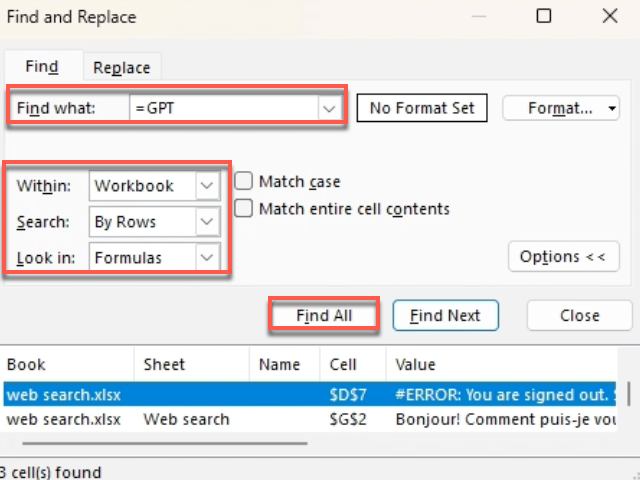
> To find and remove all GPT formulas in your workbook (the exact steps may be slightly different in Excel for the web and Excel for Mac):
>
> 1. Press **Ctrl+F** to open the **Find and Replace** window.
> 2. Click **Options**.
> 3. In **Find what**, enter `=GPT`.
> 4. Set **Within** to **Workbook**, and **Look in** to **Formulas**.
> 5. Click **Find All**.
>
> You can now locate all GPT formulas and delete them.
>
> 
**Problem**: You want to uninstall the add-in, but the **Remove** option is not available in the add-in **Options** menu in the **Office Add-ins** popup.
> **Solution**
>
> Clear the Microsoft Office cache:
>
> 1. Close all Office applications.
> 2. Follow [Microsoft's instructions for clearing the cache](https://learn.microsoft.com/en-us/office/dev/add-ins/testing/clear-cache).
> 3. Open Excel and try removing the add-in again.