# Use images in bulk tool prompts in Sheets
Use images in your prompts with [GPT for Sheets – Autosheet](https://autosheet.com/docs/gpt-for-sheets) and [vision models](https://autosheet.com/docs/resources/guides/concepts#vision-model). These models are multimodal and can process both text and images as input.
> **Tip**
>
> Don't have image URLs yet? Learn how to [host images on Google Drive for AI processing](https://autosheet.com/docs/gpt-for-sheets/bulk-tools/use-images-in-prompts#host-images-on-google-drive-for-ai-processing).
> **Info**
>
> Supported image formats: PNG, JPEG, WebP, non-animated GIF
## Supported vision models
We recommend using **gpt-5.4** to analyze images, but you can use any vision model supported by Autosheet.
**Click here for a list of all vision models supported by GPT for Sheets – Autosheet**
| Provider | Model | Built-in | Provider-connected |
| --------- | --------------------------- | -------- | ------------------ |
| OpenAI | gpt-4.1 | Yes | Yes |
| OpenAI | gpt-4.1-mini | Yes | Yes |
| OpenAI | gpt-4o | Yes | Yes |
| OpenAI | gpt-5 | Yes | Yes |
| OpenAI | gpt-5-mini | Yes | Yes |
| OpenAI | gpt-5-nano | Yes | Yes |
| OpenAI | gpt-5.1 | Yes | Yes |
| OpenAI | gpt-5.2 | Yes | Yes |
| OpenAI | gpt-5.4 | Yes | Yes |
| OpenAI | gpt-5.4-mini | Yes | Yes |
| OpenAI | gpt-5.4-nano | Yes | Yes |
| OpenAI | gpt-5.5 | Yes | Yes |
| OpenAI | gpt-5.6-luna | Yes | Yes |
| OpenAI | gpt-5.6-sol | Yes | Yes |
| OpenAI | gpt-5.6-terra | Yes | Yes |
| OpenAI | gpt-6-astra | No | Yes |
| OpenAI | gpt-6-luna | Yes | Yes |
| OpenAI | gpt-6.1-sol | Yes | Yes |
| OpenAI | gpt-6.1-terra | Yes | Yes |
| OpenAI | o3 | Yes | Yes |
| Anthropic | claude-4.1-opus | No | Yes |
| Anthropic | claude-4.5-haiku | Yes | Yes |
| Anthropic | claude-4.5-opus | Yes | Yes |
| Anthropic | claude-4.5-sonnet | Yes | Yes |
| Anthropic | claude-4.6-opus | Yes | Yes |
| Anthropic | claude-4.6-sonnet | Yes | Yes |
| Anthropic | claude-4.7-opus | Yes | Yes |
| Anthropic | claude-4.8-opus | Yes | Yes |
| Anthropic | claude-5-opus | Yes | Yes |
| Anthropic | claude-5-sonnet | Yes | Yes |
| Anthropic | claude-5.5-haiku | Yes | Yes |
| Anthropic | claude-5.5-opus | Yes | Yes |
| Anthropic | claude-5.5-sonnet | Yes | Yes |
| Anthropic | claude-fable-5 | No | Yes |
| Anthropic | claude-fable-5.1 | No | Yes |
| Mistral | mistral-medium | No | Yes |
| xAI | grok-4-1-fast | No | Yes |
| xAI | grok-4-1-fast-non-reasoning | No | Yes |
## Prompt images
> **Tip**
>
> Want to use both text and images in your prompt? Skip to [Prompt images with additional text input](https://autosheet.com/docs/gpt-for-sheets/bulk-tools/use-images-in-prompts#prompt-images-with-additional-text-input).
Use the **Prompt images (Vision)** bulk tool to apply a prompt to images in your spreadsheet.
1. [Open GPT for Sheets – Autosheet.](https://autosheet.com/docs/gpt-for-sheets/setup/open)
2. In the sidebar, select **Bulk tools** and select **Prompt images (Vision)**.
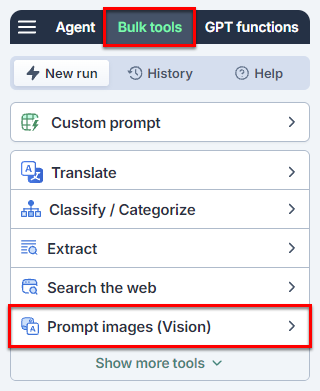
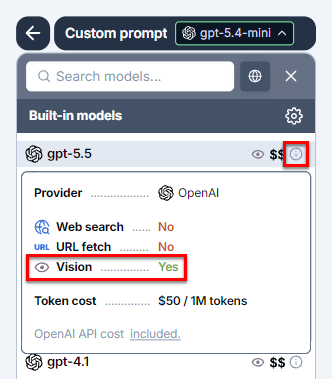
3. Open the model switcher.

4. Select a vision model.
5. Set up your bulk tool run.
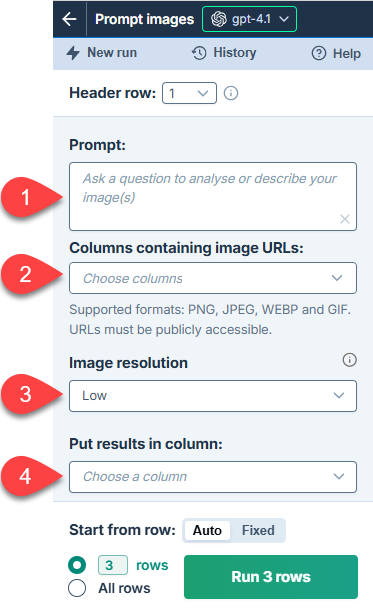
| | Field | Description | Example |
| --------------------------------------------------------------------- | --------------------------------- | ------------------------------------------------------------------------------------------------------------------------------------------------------------------------------------------------------------- | -------------------------------------------------------------------------------------------------------- |
|  | **Prompt** | Enter the prompt you want to apply to each image. | `Write a short description of this product based on how it looks, how it's used, and its build quality.` |
|  | **Columns containing image URLs** | Select up to five columns that contain image URLs. For each row, the tool processes all images present in the selected columns. URLs must be publicly accessible. | `C: Front image, D: In-use image, E: Material detail image` |
|  | **Image resolution** | Choose the level of detail for image processing:
- **High:** Better image understanding, higher latency and cost
- **Low:** Faster processing, lower cost
- **Auto:** Let the model decide (default) | `Low` |
|  | **Put results in column** | Select the column to put the results in. Cells in this column won't be overwritten with the results if they contain text. | `F: Description` |
6. Click **Run rows**.
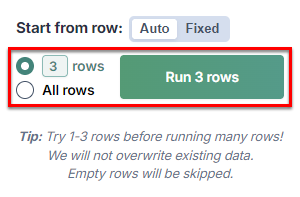
You have set up and run the **Prompt images (Vision)** bulk tool to apply a prompt to images in your spreadsheet.
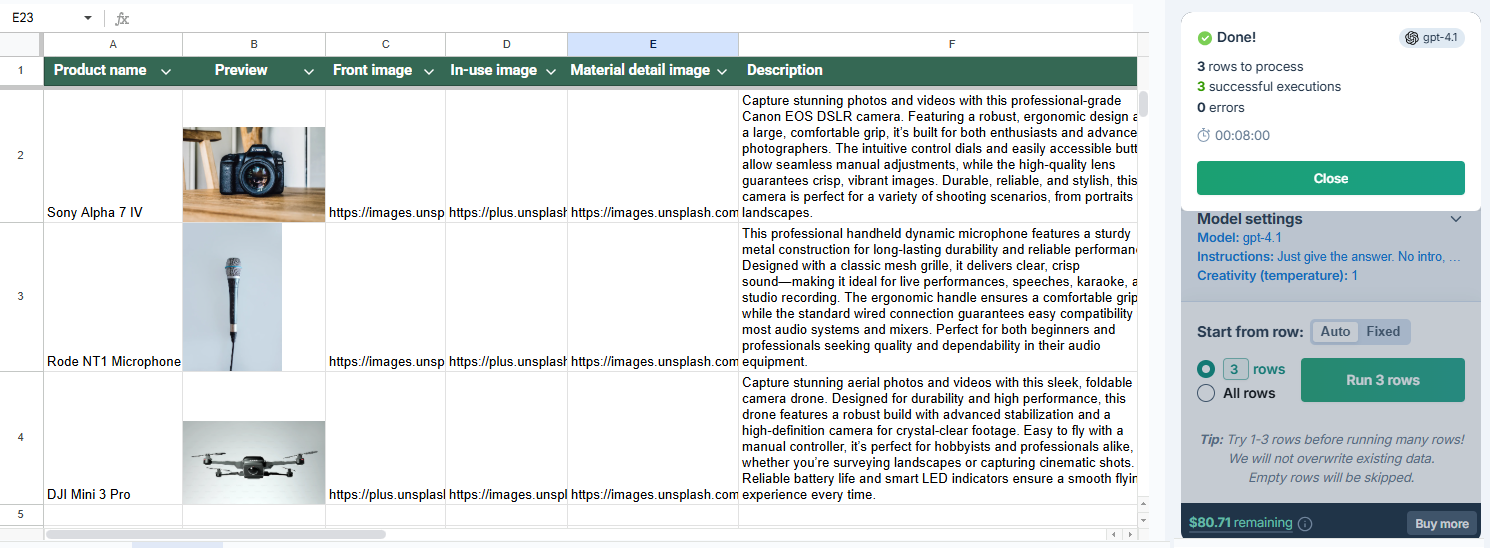
For instructions on how to improve the results, see the [tool guide](https://autosheet.com/docs/gpt-for-sheets/bulk-tools/reference#improve-bulk-tool-results).
## Prompt images with additional text input
Use the **Custom prompt** bulk tool to combine a prompt with text and images from your spreadsheet.
> **Info**
>
> In the **Custom prompt** bulk tool, the image resolution is fixed to **Low** and cannot be changed.
1. [Open GPT for Sheets – Autosheet.](https://autosheet.com/docs/gpt-for-sheets/setup/open)
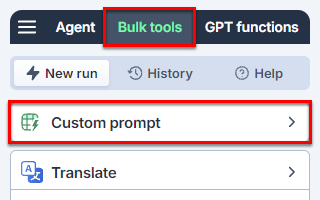
2. In the sidebar, select **Bulk tools** and select **Custom prompt**.
3. Open the model switcher.

4. Select a vision model.

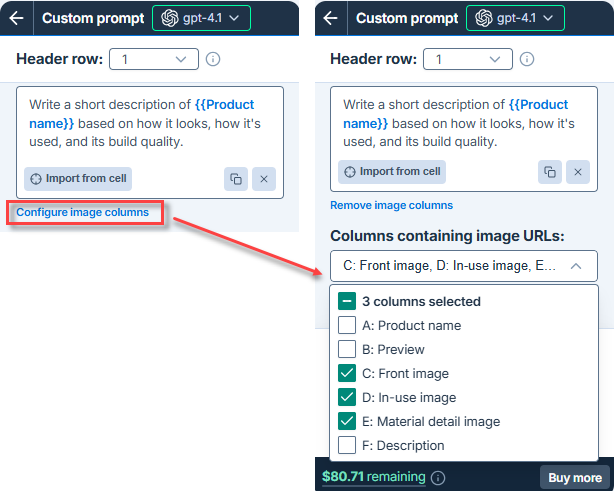
5. Write your prompt and include any variables to be replaced with values from your spreadsheet.
```
Write a short description of {{Product name}} based on how it looks, how it's used, and its build quality.
```
6. Click **Configure image columns** to show the **Columns containing image URLs** dropdown, and select the columns that contain image URLs.
7. Click **Run rows**.

You have set up and run the **Custom prompt** bulk tool to include images and text from your spreadsheet.
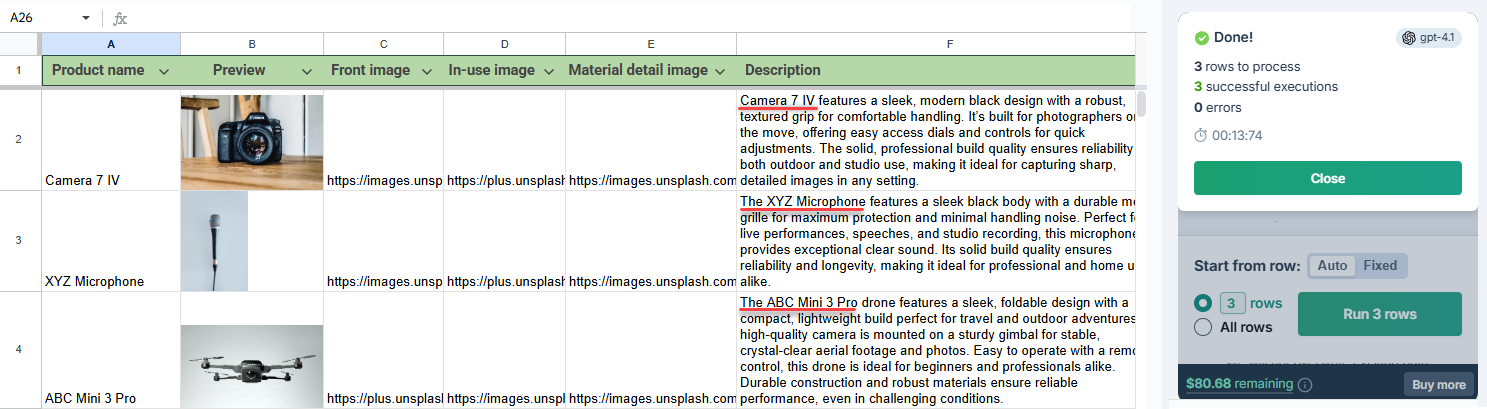
For instructions on how to improve the results, see the [tool guide](https://autosheet.com/docs/gpt-for-sheets/bulk-tools/reference#improve-bulk-tool-results).
## Host images on Google Drive for AI processing
To process an image in GPT for Sheets – Autosheet, you need the direct URL of the image and the URL must be publicly accessible.
To host an image on Google Drive so that Autosheet can access and process it:
1. Upload the image to Google Drive.
2. Share the image publicly using the **Anyone with the link** option. For more information, see [Google Drive Help](https://support.google.com/drive/answer/2494822).
> **Tip**
>
> To prevent other users from commenting or editing the image, set the access role to **Viewer**.
3. Copy the link.
4. Get the image file ID from the link URL, and build the following new URL with the ID:
```
https://drive.google.com/uc?id=
```
For example:
```
# Original share URL from "Copy link"
https://drive.google.com/file/d/1dTZrIkAHsV_hKnvL2KjH1pfcOOSpYVux/view
# Direct image URL
https://drive.google.com/uc?id=1dTZrIkAHsV_hKnvL2KjH1pfcOOSpYVux
```
You now have a direct image URL that you can access and process in Autosheet.