# Configure AI behavior in GPT for Word
Configure model settings to customize how GPT for Word generates responses.
> **Info**
>
> Model settings are specific to each document.
## Add custom instructions
Provide custom instructions to specify preferences or requirements that you'd like the AI to consider when generating responses.
1. In the GPT for Word sidebar, click **Settings**.

2. In the **Custom instructions** dropdown, select the type of instructions you'd like to add and edit them if needed.
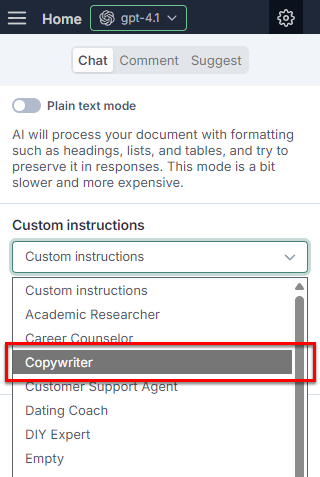
3. Click **Save**.
The AI takes the custom instructions into account when generating responses in the current document.
> **Tip**
>
> To revert the custom instructions to the default, click **Reset to default**.
## Set the creativity level
Control how creative the AI is by setting the temperature and top-p parameters. The parameters work together to define overall creativity. Lower creativity generates responses that are straightforward and predictable, while higher creativity generates responses that are more random and varied.
> **Tip**
>
> For more information about temperature as used by OpenAI to set the creativity level, see our [temperature guide](https://autosheet.com/guides/openai-gpt-ai-temperature).
| Parameter | Description | How to use |
| --------------- | ----------------------------------- | ---------------------------------------------------------------------------------------------------------------- |
| **Temperature** | Controls randomness in the output. | - Possible values: **0-1**
- Keep at **1** if adjusting **Top P**
- Lower for factual, higher for creative |
| **Top P** | Controls diversity of word choices. | - Possible values: **0-1**
- Keep at **1** for most use cases
- Only lower if **Temperature** is **1** |
1. In the GPT for Word sidebar, click **Settings**.

2. Use the slider to set **Creativity** between **0** and **1**.
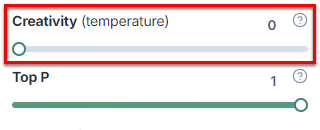
3. (Optional) Use the slider to set **Top P** between **0** and **1**.
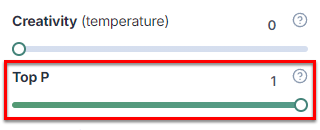
4. Click **Save**.
The AI uses the new temperature and top-p values when generating responses in the current document.
## Reduce AI response repetition
Set frequency and presence penalties to reduce the tendency of OpenAI and xAI models towards repetition.
| Parameter | Description | How to use |
| --------------------- | ----------------------------------------------------------------------------------------- | ---------------------------------------------------------------------------------------------- |
| **Frequency penalty** | Controls how much to penalize new tokens based on their frequency in the text so far. | - Possible values: **0-2**
- Keep at **0** by default
- Higher values reduce repetition |
| **Presence penalty** | Controls how much to penalize new tokens based on whether they appear in the text so far. | - Possible values: **0-2**
- Keep at **0** by default
- Higher values increase diversity |
1. In the GPT for Word sidebar, click **Settings**.

2. Use the sliders to set **Frequency penalty** and **Presence penalty** between **0** and **2**.
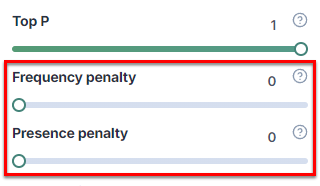
3. Click **Save**.
The AI uses the new penalty values when generating responses in the current document.
## What's next
- [Manage text formatting.](https://autosheet.com/docs/gpt-for-word/use/manage-text-formatting)
- [Select the model](https://autosheet.com/docs/gpt-for-word/configure/select-model) that best fits your needs.