We ran the 187 AutosheetBench tasks on four Excel AI add-ins: Autosheet in Excel (Talarian), Claude in Excel (Anthropic), ChatGPT in Excel (OpenAI), and Copilot in Excel (Microsoft).
Autosheet in Excel scored highest overall
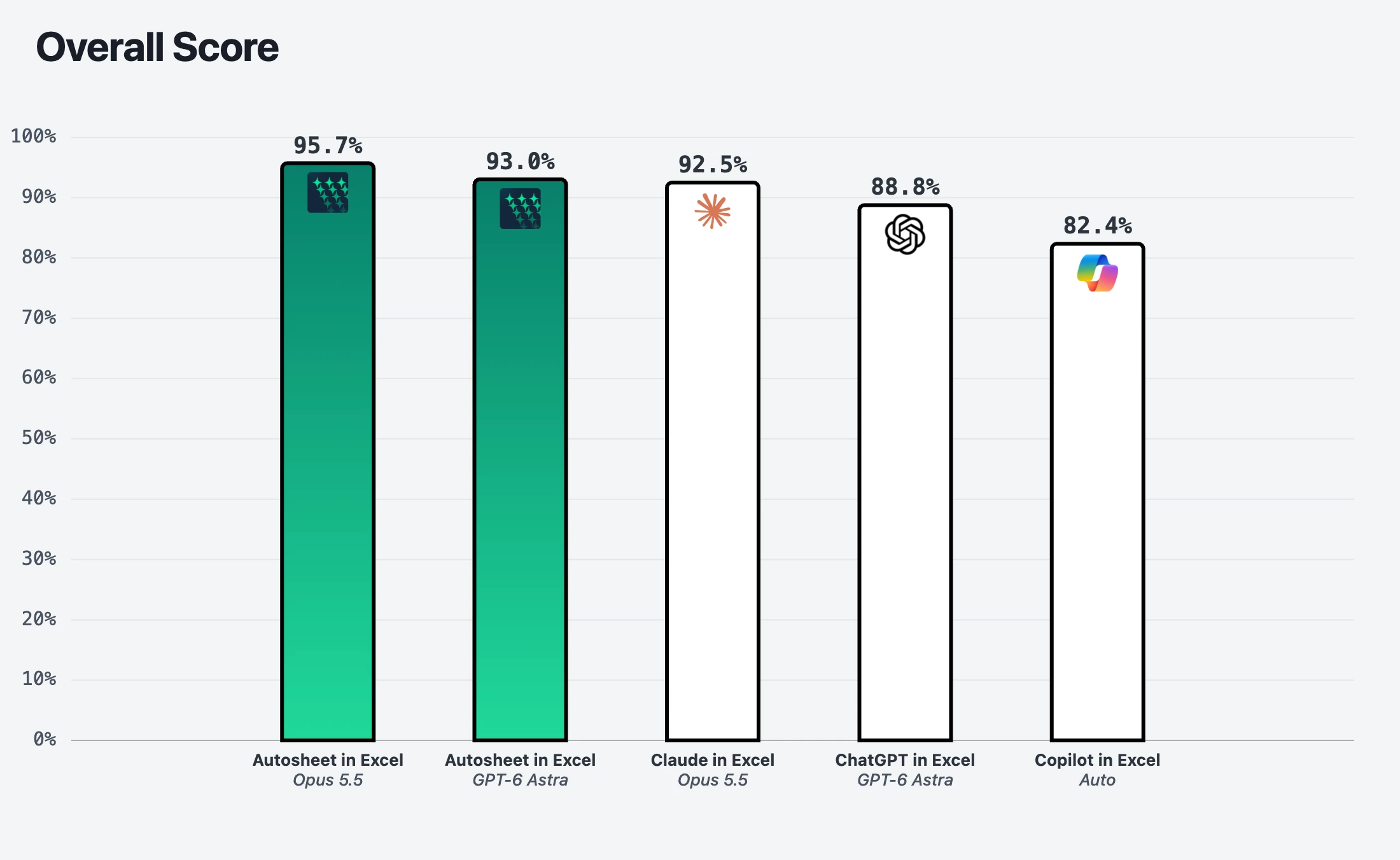
Chart data as a table
Product | Model and reasoning effort | Score |
|---|---|---|
Autosheet in Excel | Opus 5.5 · Medium | 95.7% |
Autosheet in Excel | GPT-6 Astra · Low | 93.0% |
Claude in Excel | Opus 5.5 · Extended thinking on | 92.5% |
ChatGPT in Excel | GPT-6 Astra · Medium | 88.8% |
Copilot in Excel | Auto | 82.4% |
Autosheet in Excel passed 95.7% of the tasks with Opus 5.5, ahead of Claude in Excel (92.5%), ChatGPT in Excel (88.8%), and Copilot in Excel (82.4%). With GPT-6 Astra, it still came second at 93.0%.
Autosheet in Excel is also the fastest product
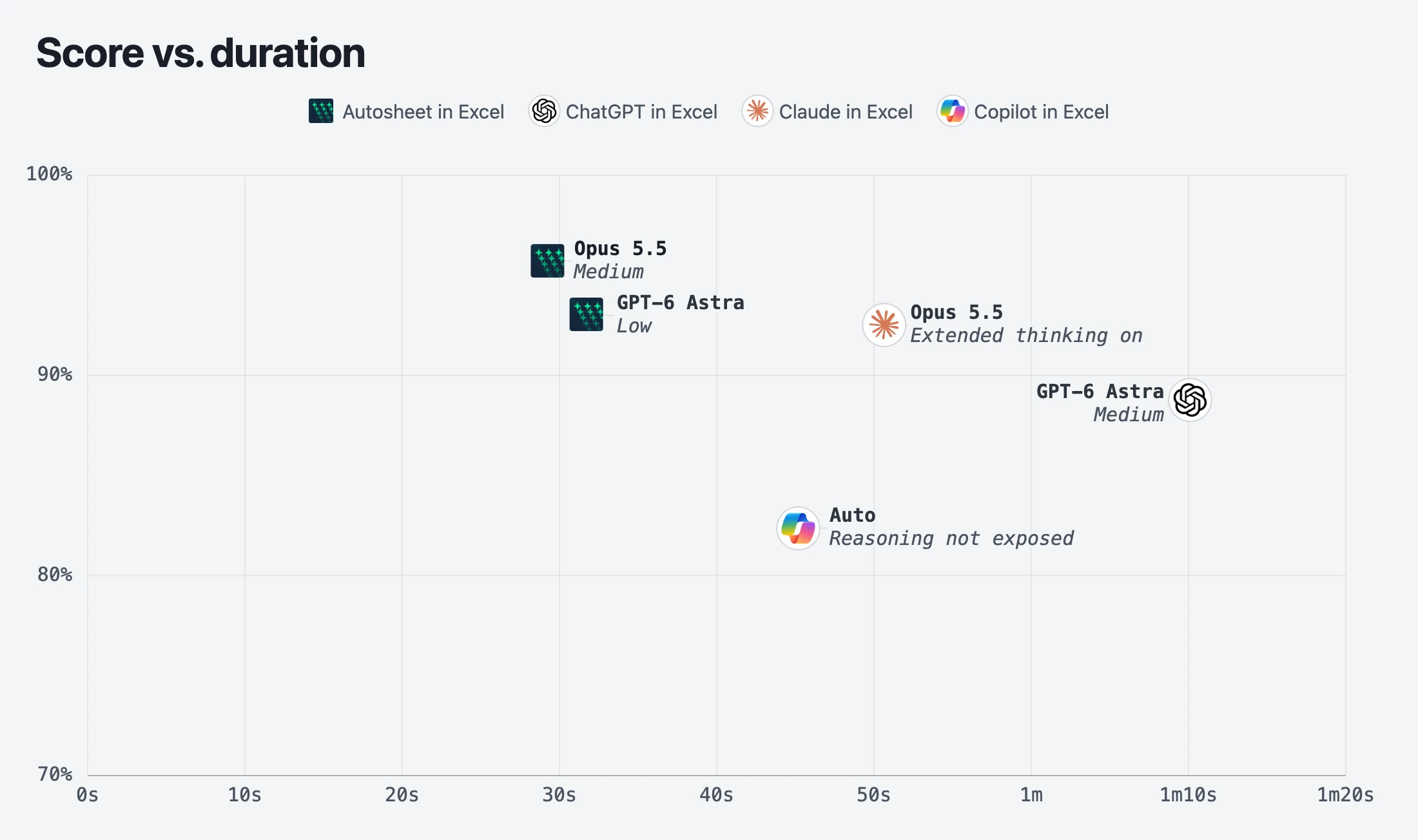
Chart data as a table
Product | Model and reasoning effort | Score | Average time per task |
|---|---|---|---|
Autosheet in Excel | Opus 5.5 · Medium | 95.7% | 29 s |
Autosheet in Excel | GPT-6 Astra · Low | 93.0% | 32 s |
Claude in Excel | Opus 5.5 · Extended thinking on | 92.5% | 51 s |
ChatGPT in Excel | GPT-6 Astra · Medium | 88.8% | 1 min 10 s |
Copilot in Excel | Auto | 82.4% | 45 s |
On average, Autosheet in Excel took about 30 s per task, against 51 s for Claude in Excel, 1 min 10 s for ChatGPT in Excel, and 45 s for Copilot in Excel, which also had the lowest score.
What sets Autosheet in Excel apart the most is its bulk capability
The tasks fall into two groups:
- 159 native operations: everyday work on the spreadsheet itself, such as formulas, charts, formatting, and pivot tables.
- 28 bulk operations: the same AI task on every row of a large sheet, such as translating 1,000 reviews, writing product descriptions, or summarizing job descriptions.
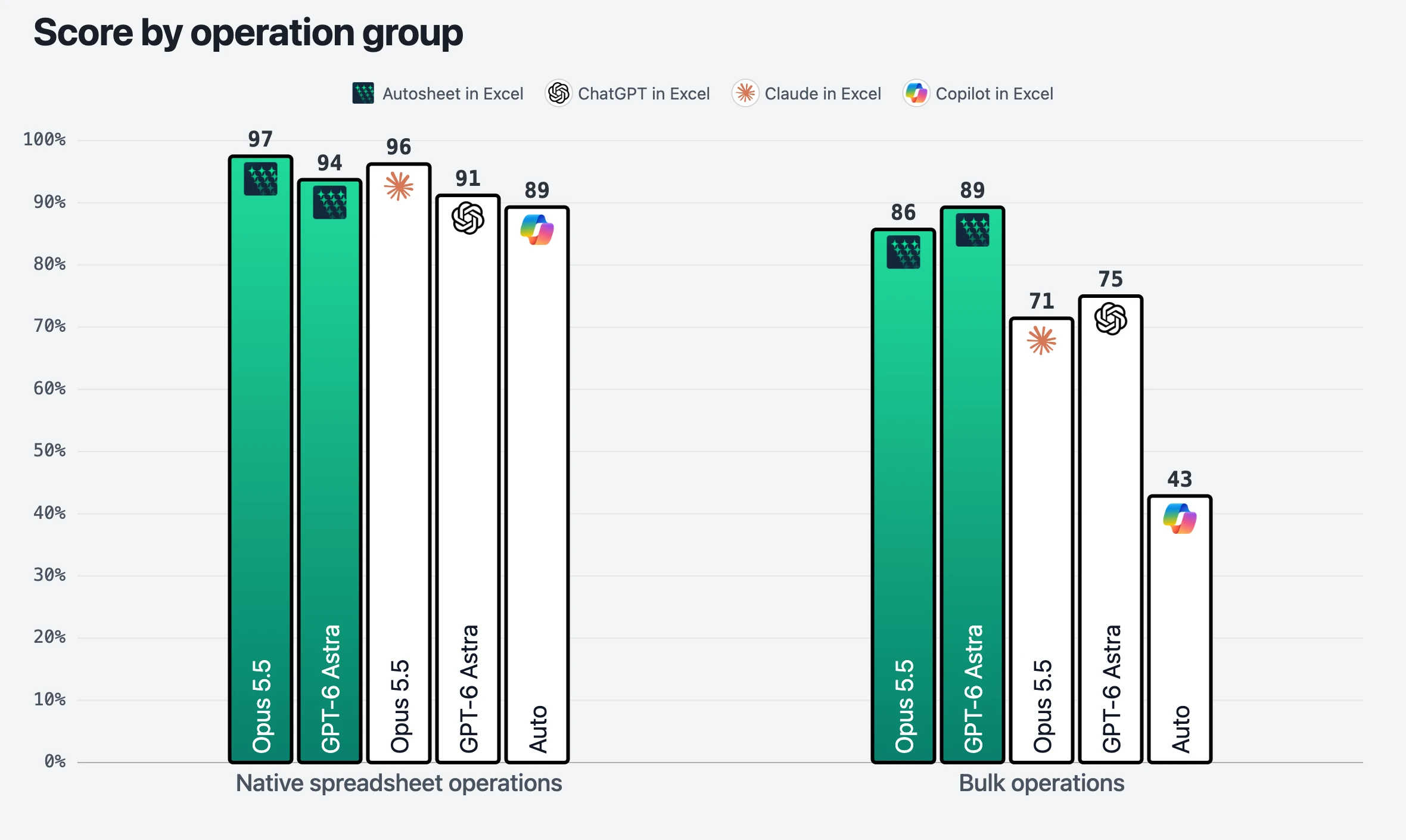
Chart data as a table
Product | Model and reasoning effort | Native operations | Bulk operations |
|---|---|---|---|
Autosheet in Excel | Opus 5.5 · Medium | 97.5% (155/159) | 85.7% (24/28) |
Autosheet in Excel | GPT-6 Astra · Low | 93.7% (149/159) | 89.3% (25/28) |
Claude in Excel | Opus 5.5 · Extended thinking on | 96.2% (153/159) | 71.4% (20/28) |
ChatGPT in Excel | GPT-6 Astra · Medium | 91.2% (145/159) | 75.0% (21/28) |
Copilot in Excel | Auto | 89.3% (142/159) | 42.9% (12/28) |
The two groups cover eight categories:
Category | Examples |
|---|---|
Charts | Creating and updating charts |
Data operations | Trimming, find and replace, filling blanks, finding specific cells |
Formatting | Conditional formatting, number formats |
Formulas | Writing formulas, tracing dependents |
Pivot tables | Creating pivot tables |
Spreadsheet manipulation | Hiding, deleting, or inserting rows and columns |
Bulk content generation | Translating text, writing SEO descriptions, summarizing reviews |
Bulk data processing | Extracting a salary from a job description, cleaning data, classifying reviews by sentiment |
Scores are close on native operations. The big gap is on bulk operations, and it's widest in content generation: Autosheet in Excel passed 10 of 11 tasks with Opus 5.5 and 9 with GPT-6 Astra, against 5 for Claude in Excel, 7 for ChatGPT in Excel, and 2 for Copilot in Excel.
Autosheet in Excel beats each model maker's own add-in
The product matters as much as the model. Each pair below uses the same model, so the difference comes from the product: its tools, workflow, and checks. With one attempt per task, treat a gap of one or two tasks as a tie.
- With Opus 5.5, Autosheet in Excel is far ahead on bulk content generation, with 10 of 11 tasks against 5 for Claude in Excel. In every other category, the two are within one task of each other.
- With GPT-6 Astra, Autosheet in Excel pulls ahead on spreadsheet manipulation and bulk operations. ChatGPT in Excel is one task ahead on formulas and data operations, which is a tie.
 Autosheet in ExcelMedium Autosheet in ExcelMedium |  Claude in ExcelExtended thinking on Claude in ExcelExtended thinking on | |
|---|---|---|
| Overall score (187 tasks) | Win +6 tasks (179/187) | 173/187 |
| Time per bulk operation (28 tasks) | Win 1 min 21 s faster (1 min 41 s) | 3 min 2 s |
| By operation group | ||
| Native operations (159 tasks) | Win +2 tasks (155/159) | 153/159 |
| Charts (30 tasks) | 27/30 | Win +1 task (28/30) |
| Data operations (17 tasks) | Tie (17/17 vs 17/17) | |
| Formatting (26 tasks) | Win +1 task (26/26) | 25/26 |
| Formulas (42 tasks) | Tie (42/42 vs 42/42) | |
| Pivot tables (8 tasks) | Win +1 task (7/8) | 6/8 |
| Spreadsheet manipulation (36 tasks) | Win +1 task (36/36) | 35/36 |
| Bulk operations (28 tasks) | Win +4 tasks (24/28) | 20/28 |
| Content generation (11 tasks) | Win +5 tasks (10/11) | 5/11 |
| Data processing (17 tasks) | 14/17 | Win +1 task (15/17) |
| Autosheet in ExcelLow |  ChatGPT in ExcelMedium ChatGPT in ExcelMedium | |
|---|---|---|
| Overall score (187 tasks) | Win +8 tasks (174/187) | 166/187 |
| Time per bulk operation (28 tasks) | Win 2 min 15 s faster (2 min 5 s) | 4 min 20 s |
| By operation group | ||
| Native operations (159 tasks) | Win +4 tasks (149/159) | 145/159 |
| Charts (30 tasks) | Tie (26/30 vs 26/30) | |
| Data operations (17 tasks) | 15/17 | Win +1 task (16/17) |
| Formatting (26 tasks) | Win +2 tasks (25/26) | 23/26 |
| Formulas (42 tasks) | 41/42 | Win +1 task (42/42) |
| Pivot tables (8 tasks) | Tie (7/8 vs 7/8) | |
| Spreadsheet manipulation (36 tasks) | Win +4 tasks (35/36) | 31/36 |
| Bulk operations (28 tasks) | Win +4 tasks (25/28) | 21/28 |
| Content generation (11 tasks) | Win +2 tasks (9/11) | 7/11 |
| Data processing (17 tasks) | Win +2 tasks (16/17) | 14/17 |
Native operations: Autosheet in Excel and Claude in Excel lead, Copilot in Excel trails
On the 159 native operations:
- With Opus 5.5, Autosheet in Excel (97.5%) and Claude in Excel (96.2%) lead. They're two tasks apart, which is effectively a tie.
- With GPT-6 Astra, Autosheet in Excel (93.7%) passed 4 more tasks than ChatGPT in Excel (91.2%).
- Copilot in Excel comes last but holds up (89.3%).
Formulas rarely cause failures. Most come from harder tasks, like charts and pivot tables, or from odd choices, such as fixed formatting instead of conditional formatting, or hiding rows instead of filtering them.
Building a Gantt chart
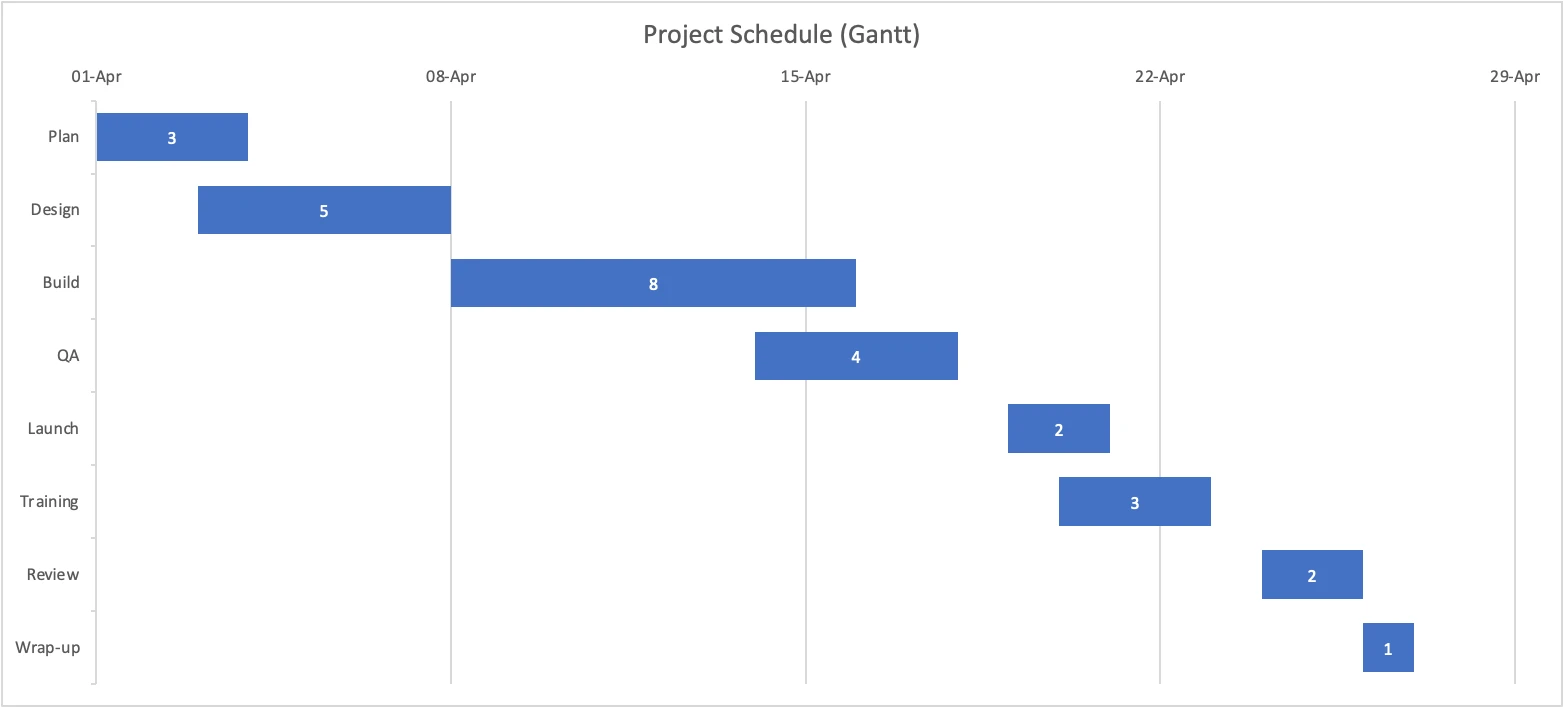
The start dates in this workbook are stored as text. Autosheet in Excel and Claude in Excel turned them into real dates before building the chart. ChatGPT in Excel's chart looks good but shows no dates, which makes it much less useful, and Copilot in Excel only charted durations.
Create a Gantt chart.The start dates are stored as text, such as 2025-04-01. They must become real dates before Excel can place them on a time axis.
Autosheet in ExcelOpus 5.5 · Medium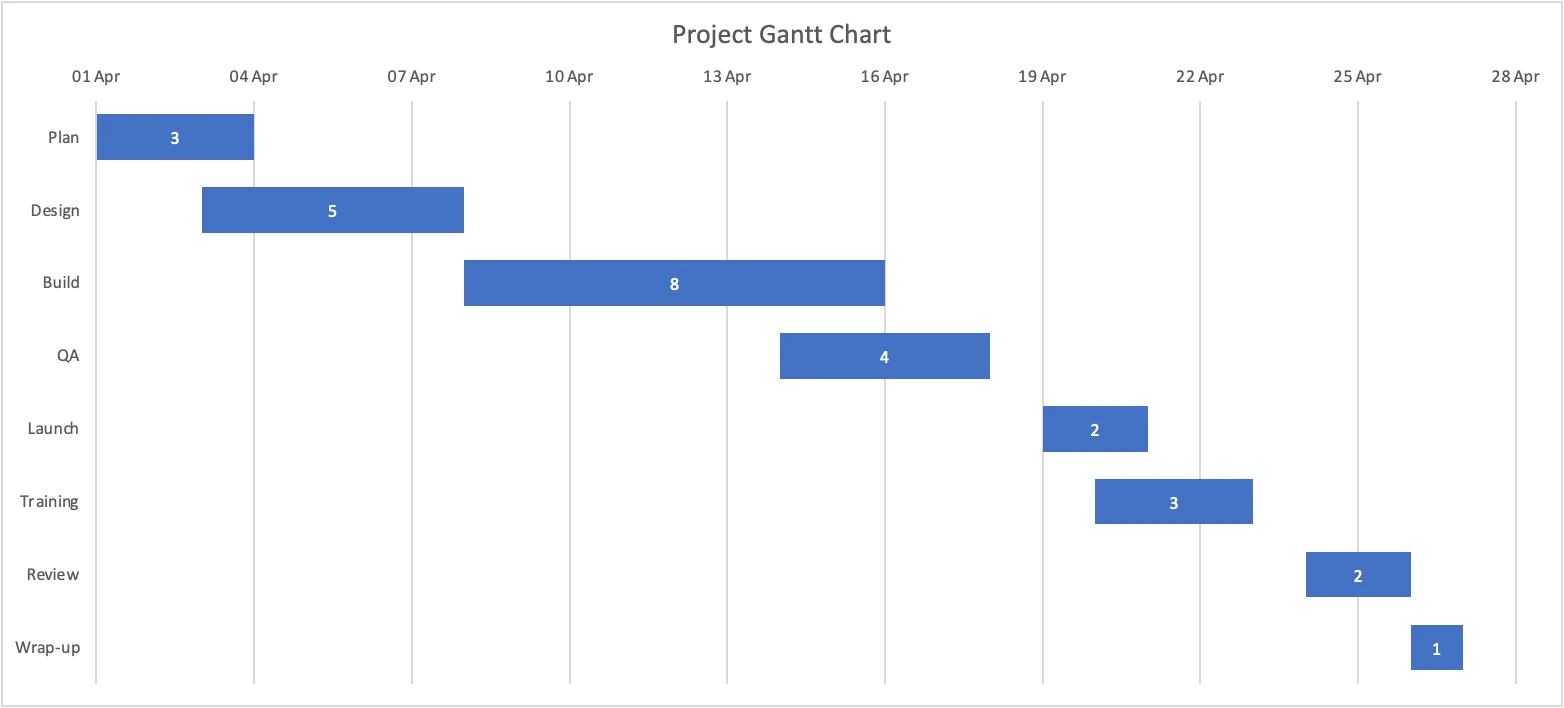 Claude in ExcelOpus 5.5 · Extended thinking on
 ChatGPT in ExcelGPT-6 Astra · Medium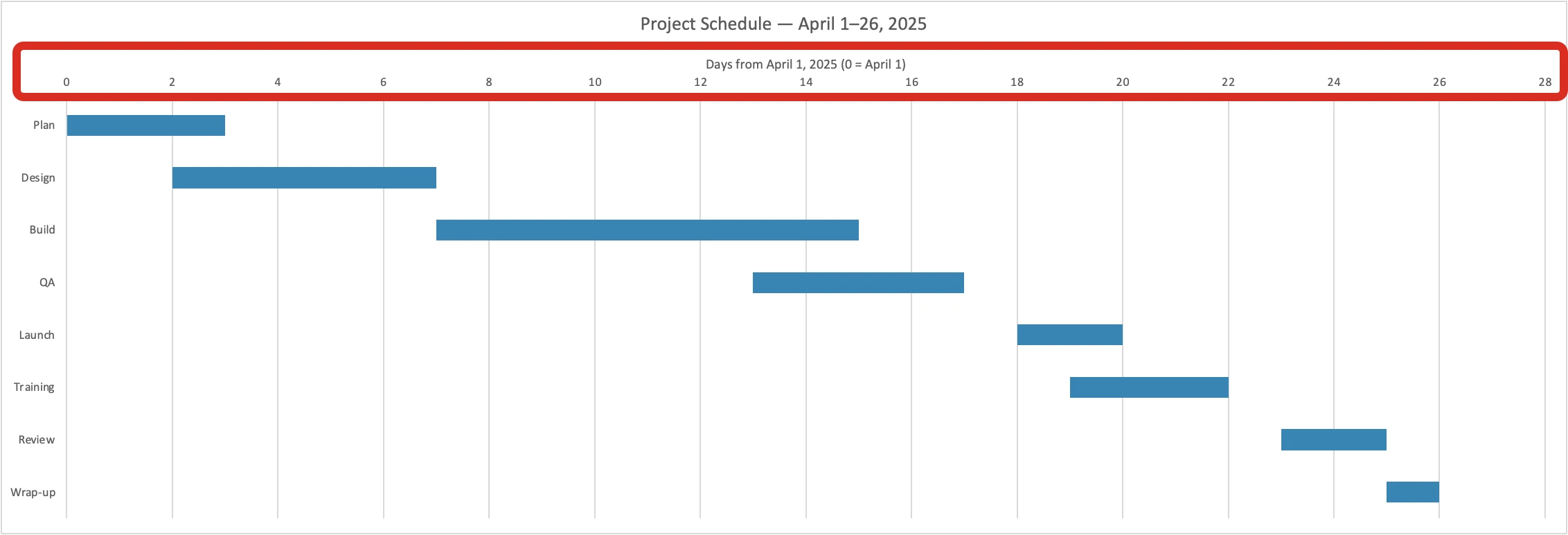
 Copilot in ExcelAuto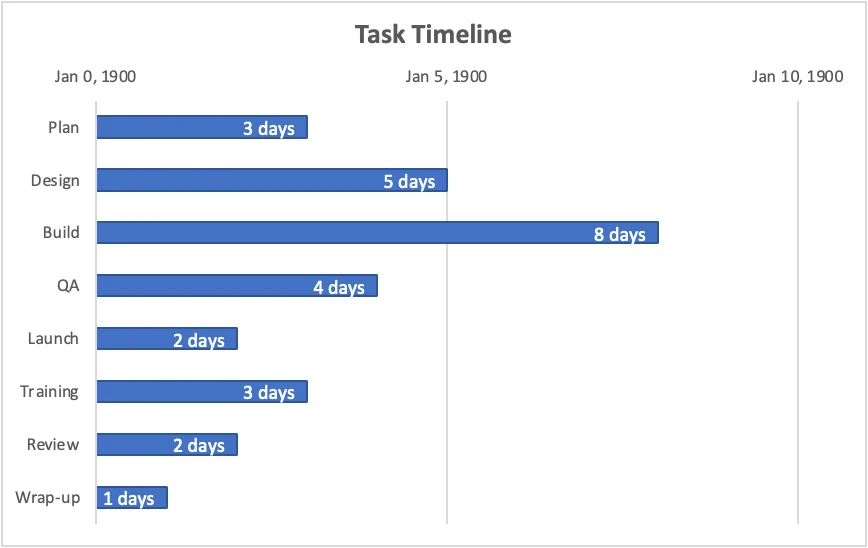
Highlighting rows with a rule, not by hand
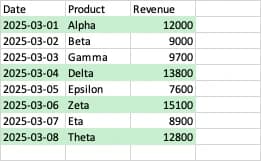
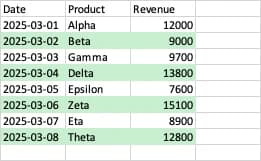
Autosheet in Excel and Claude in Excel added a conditional-formatting rule, so the highlight follows the revenue when it changes. ChatGPT in Excel and Copilot in Excel only colored the rows that were over 10,000 at the time. The sheet looks the same at first, but the highlight is wrong as soon as a number changes.
Highlight entire rows where revenue is greater than 10000 with a light green fill.After the run, we changed two revenues to test the highlight: Alpha from 8,400 to 12,000, and Beta from 11,200 to 9,000. Autosheet in Excel and Claude in Excel look the same here, and so do ChatGPT in Excel and Copilot in Excel.
Autosheet in ExcelOpus 5.5 · Medium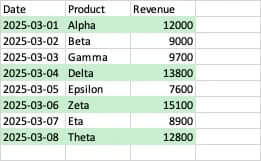 Claude in ExcelOpus 5.5 · Extended thinking on
 ChatGPT in ExcelGPT-6 Astra · Medium
 Copilot in ExcelAuto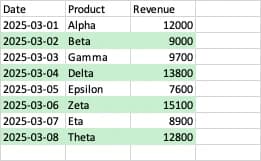
Building the running total inside the pivot table
Every product built the running total inside the pivot table, except Claude in Excel. After some errors, it added a formula column next to the pivot table instead. That column doesn't follow the pivot table: add a month or filter a region, and the column no longer matches.
In a new `Pivot` sheet at `A3`, create a pivot table showing cumulative revenue over time.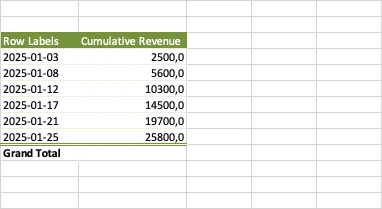 Claude in ExcelOpus 5.5 · Extended thinking on
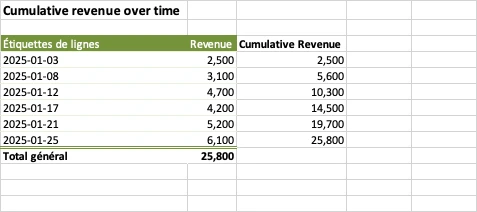 ChatGPT in ExcelGPT-6 Astra · Medium
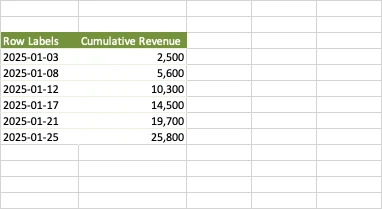 Copilot in ExcelAuto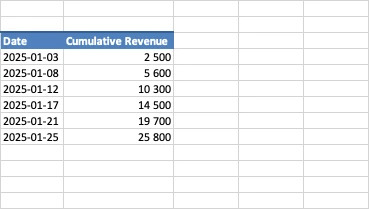
Autosheet in Excel wins on bulk operations because it handles each row separately
Faced with 1,000 rows, the other three add-ins usually take a shortcut. They either write code to fill the column, which fails when each row needs judgment, or work through the rows themselves in one long conversation, which is slow and gets sloppier as it grows.
Autosheet in Excel's agent sets up the job, then sends each row to a bulk model, which handles it in its own short call. The calls run in parallel: in the translation task below, Autosheet in Excel finished 1,000 rows in under 2 min with Opus 5.5.
The gap is widest on content generation, where code can't do the job. On those 11 tasks, Autosheet in Excel was 2 to 4 times faster than Claude in Excel and ChatGPT in Excel, with better results. With Opus 5.5, it took under 2 min per task, against nearly 6 min for Claude in Excel and 7 min for ChatGPT in Excel. Copilot in Excel took under 3 min but passed only 2 of the 11.
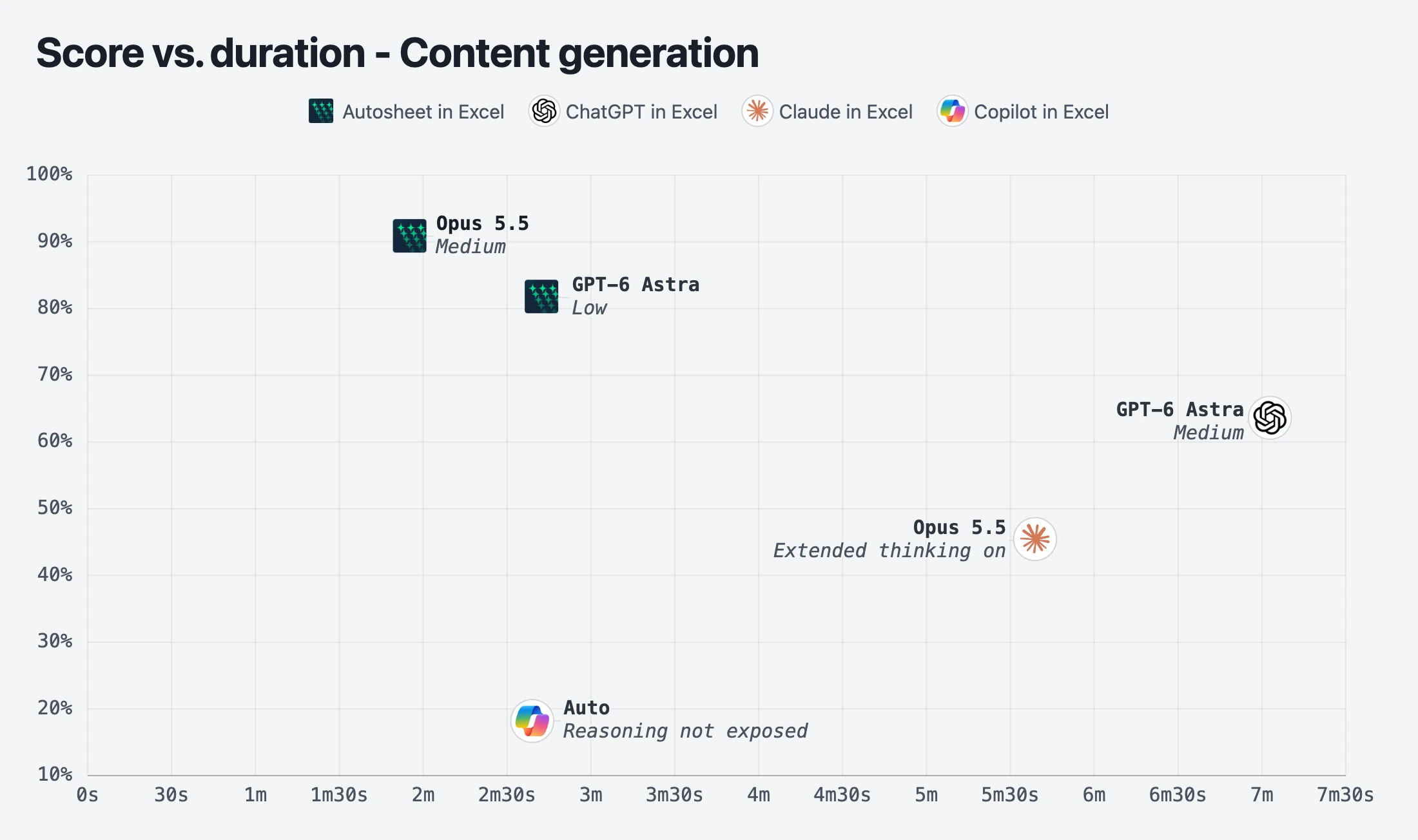
Chart data as a table
Product | Model and reasoning effort | Content generation score | Average time per content generation task |
|---|---|---|---|
Autosheet in Excel | Opus 5.5 · Medium | 90.9% (10/11) | 1 min 55 s |
Autosheet in Excel | GPT-6 Astra · Low | 81.8% (9/11) | 2 min 42 s |
Claude in Excel | Opus 5.5 · Extended thinking on | 45.5% (5/11) | 5 min 39 s |
ChatGPT in Excel | GPT-6 Astra · Medium | 63.6% (7/11) | 7 min 3 s |
Copilot in Excel | Auto | 18.2% (2/11) | 2 min 39 s |
To pass, a bulk operation must fill all 1,000 rows and follow the prompt's rules. When many answers can work, it must also pass an AI quality check on 50 sample rows (see How we ran the benchmark). The four tasks below show the difference. In each table, the badges grade the sample rows shown, and the task result under the table covers all 1,000 rows.
Translating 1,000 reviews before time runs out
The reviews in column D are written in several languages. Create a new col `english_review` in G with an English version. Rows already in English should stay the same.Autosheet in Excel sent each review to the bulk model and finished in under 2 min with Opus 5.5. Claude in Excel and ChatGPT in Excel translated the reviews themselves, batch after batch. Claude in Excel hit the 10 min limit with 625 rows still empty. ChatGPT in Excel finished, but 13 of the 50 judged rows failed the quality check, where 5 are allowed. Copilot in Excel declined the task.
| Autosheet in ExcelOpus 5.5 · Medium | Claude in ExcelOpus 5.5 · Extended thinking on | ChatGPT in ExcelGPT-6 Astra · Medium | Copilot in ExcelAuto |
|---|---|---|---|
Filling the column in time 1,000 customer reviews in column D, 937 of them not in English, to translate into column G within the 10 min limit. | |||
| Autosheet in ExcelOpus 5.5 · Medium Handed each review to the bulk model in a separate call. | Claude in ExcelOpus 5.5 · Extended thinking on Translated the reviews itself, batch after batch, until the limit stopped it. 625 rows left empty. | ChatGPT in ExcelGPT-6 Astra · Medium Translated the reviews itself, batch after batch. | Copilot in ExcelAuto Replied “I'm not able to answer that. What else can I do for you?” Nothing written in the sheet. |
Quality of one sentence … 나처럼 이런 도구가 처음인 사람이라면 GPT for Sheets가 생각보다 큰 도움이 될 수 있다. … English translationIf you're new to tools like this, as I was, GPT for Sheets can help more than you'd expect. | |||
| Autosheet in ExcelOpus 5.5 · Medium … If you’re new to tools like this, GPT for Sheets can be more helpful than you might expect. … 46 of the 50 judged rows passed. | Claude in ExcelOpus 5.5 · Extended thinking on … For someone like me who's new to tools like this, GPT for Sheets can be more helpful than you'd think. … Not judged: the run was incomplete. | ChatGPT in ExcelGPT-6 Astra · Medium … For someone like me who is new to this kind of tool, GPT for Sheets can be a huge help than I expected. … 13 of the 50 judged rows failed, 5 allowed. | Copilot in ExcelAuto Empty cell Nothing to judge. |
Task result (all 1,000 rows): Autosheet in Excel passed. Claude in Excel failed (timeout), ChatGPT in Excel failed (quality), and Copilot in Excel failed (no output).
Custom product descriptions, not templated ones
Add a new column with the header `seo_description` in column K. Write an original description of at least 60 characters.Autosheet in Excel wrote each description in its own call, so every one is different. The other three add-ins used templates: a few fixed sentences with each product's details filled in. One of Claude in Excel's templates covers 200 rows, one of ChatGPT in Excel's covers 167, and Copilot in Excel used the same template for all 1,000.
Claude in Excel's descriptions read well one by one, but they repeat across the sheet. ChatGPT in Excel's and Copilot in Excel's mostly restate the product name and specs. All three failed the repetition check.
| Autosheet in ExcelOpus 5.5 · Medium | Claude in ExcelOpus 5.5 · Extended thinking on | ChatGPT in ExcelGPT-6 Astra · Medium | Copilot in ExcelAuto |
|---|---|---|---|
Product Kettl Series 103 Steel Lamp Copper 329g 26x38x12cm | |||
| Autosheet in ExcelOpus 5.5 · Medium Kettl Series 103 outdoor steel lamp in a copper finish, featuring wireless charging. Compact and lightweight at 26 x 38 x 12 cm and 329 g. | Claude in ExcelOpus 5.5 · Extended thinking on Shop the Kettl steel lamp (Series 103) in Copper. With wireless charging, it suits students and fitness training, plus 15 months of warranty cover. This template was used for 200 of 1,000 rows. | ChatGPT in ExcelGPT-6 Astra · Medium Take a closer look at the Kettl Series 103 Steel Lamp Copper. Its 329 g weight and 26 x 38 x 12 cm dimensions help you compare product options. This template was used for 167 of 1,000 rows. | Copilot in ExcelAuto Discover the Kettl Series 103 Steel Lamp Copper 329g 26x38x12cm, a distinctive everyday choice with practical design and reliable appeal. Product reference: SKU-5003. This template was used for all 1,000 rows. |
Product Marisol Series 102 Steel Headphones Slate 246g 19x27x28cm | |||
| Autosheet in ExcelOpus 5.5 · Medium Marisol Series 102 steel headphones with wireless charging, ideal for everyday listening and weekend camping. Lightweight at 246 g, with assorted colors. | Claude in ExcelOpus 5.5 · Extended thinking on Upgrade your weekend camping kit with the Marisol Series 102 headphones: durable steel, wireless charging, and a 12-month warranty, finished in Slate. This template was used for 189 of 1,000 rows. | ChatGPT in ExcelGPT-6 Astra · Medium Meet the Marisol Series 102 Steel Headphones Slate, with dimensions of 19 x 27 x 28 cm and a weight of 246 g. Take a closer look at this model. This template was used for 167 of 1,000 rows. | Copilot in ExcelAuto Discover the Marisol Series 102 Steel Headphones Slate 246g 19x27x28cm, a distinctive everyday choice with practical design and reliable appeal. Product reference: SKU-5002. This template was used for all 1,000 rows. |
Task result (all 1,000 rows): Autosheet in Excel passed. Claude in Excel, ChatGPT in Excel, and Copilot in Excel failed (repetition).
Job summaries that really describe the job
Summarize each job description in column C (job_description).
Add a new column with the header job_summary in column F. Write a clear one-line summary of at most 160 characters describing the role's main purpose and responsibilities. Do not copy the full description and fill every row.
Autosheet in Excel passed with a bulk run, and ChatGPT in Excel passed by writing the summaries itself. Copilot in Excel failed with generic sentences: one fits its row by chance, the next invents a healthcare role. Claude in Excel failed too, because its summaries repeat the job title or describe the company instead of the role. Its own explanation shows why:
"How I wrote them: for each row I read the job title, the company and the key sentences about the role, not every word of the full description."
| Autosheet in ExcelOpus 5.5 · Medium | Claude in ExcelOpus 5.5 · Extended thinking on | ChatGPT in ExcelGPT-6 Astra · Medium | Copilot in ExcelAuto |
|---|---|---|---|
Job description (excerpt) Lead Data Scientist for Network Analysis and Control. Direct, high-impact role at MITRE’s Infrastructure and Networking Technical Center. […] What you’ll do · Build data analytics to predict network behavior and detect anomalies · Design analytics systems enabling network automation and security across government sponsors · Provide technical leadership in data science and serve as a trusted advisor · Lead cross-disciplinary teams as the data analytics expert · Drive R&D initiatives and help transition innovations to operations […] | |||
| Autosheet in ExcelOpus 5.5 · Medium Leads data science for network prediction, anomaly detection, automation, and control, guiding R&D, teams, and government stakeholders. | Claude in ExcelOpus 5.5 · Extended thinking on Leads data science for network analysis and control at MITRE. Repeats the job title and the employer, with none of the responsibilities. | ChatGPT in ExcelGPT-6 Astra · Medium Lead data science research and analytics for communications networks to improve automation, intelligent control, and mission infrastructure. | Copilot in ExcelAuto Lead teams and projects, build machine-learning models, and analyze complex data to support secure mission systems. Generic wording Copilot in Excel reused across rows, but it fits this role. |
Job description (excerpt) Geotab, a global leader in IoT and connected transportation, is one of the fastest-growing technology companies in North America […] We are looking for Data Scientists who can help us discover value out of our rich and large datasets. […] You will leverage data mining techniques, Machine Learning, Deep Learning, Neural Networks and other Artificial Intelligence and statistical analysis tools to build models and high quality prediction systems to help our customers make informed and smarter decisions. […] Own the design, development, and maintenance of ongoing metrics, reports, analysis, dashboards […] | |||
| Autosheet in ExcelOpus 5.5 · Medium Build ML models and analytics from large vehicle datasets to deliver dashboards, predictions, and insights improving fleet safety and efficiency. | Claude in ExcelOpus 5.5 · Extended thinking on Applies data science to IoT telematics and connected transportation data at Geotab. Names the company’s business, not what the data scientist does. | ChatGPT in ExcelGPT-6 Astra · Medium Analyze connected vehicle data and build predictive analytics to improve fleet safety, infrastructure, and productivity. | Copilot in ExcelAuto Lead teams and projects, build machine-learning models, and analyze complex data to improve healthcare decisions. Nothing in this telematics job relates to healthcare, and the role doesn’t lead teams. |
Task result (all 1,000 rows): Autosheet in Excel and ChatGPT in Excel passed. Claude in Excel and Copilot in Excel failed (quality).
Order IDs, not just any IDs
Extract the order ID from each ticket body in column D. Order IDs are short alphanumeric references such as HB709. Add a new column with the header order_id in column G. If the body does not contain an order ID, return N/A or Unknown. Do not leave any row blank.Here, all three competitors wrote code rules. ChatGPT in Excel took any two capital letters followed by three digits, so it also grabbed workspace and ticket IDs and got 159 rows wrong. Copilot in Excel's rule was too strict and missed 128 real orders. Claude in Excel also looked for the word "order", in several languages, near each code, and got only 10 rows wrong, within our tolerance.
Autosheet in Excel's bulk model reads each ticket on its own. With GPT-6 Astra (shown below), Autosheet in Excel got only 1 row wrong. With Opus 5.5, it failed: our agent's instructions to the bulk model didn't say clearly enough to ignore other IDs, so 82 rows got a workspace or ticket ID instead of N/A.
| Autosheet in ExcelGPT-6 Astra · Low | Claude in ExcelOpus 5.5 · Extended thinking on | ChatGPT in ExcelGPT-6 Astra · Medium | Copilot in ExcelAuto |
|---|---|---|---|
Ticket (excerpt) … The affected workspace ID is IW237. Expected: N/A, because IW237 is a workspace ID | |||
| Autosheet in ExcelGPT-6 Astra · Low N/A | Claude in ExcelOpus 5.5 · Extended thinking on N/A | ChatGPT in ExcelGPT-6 Astra · Medium IW237 A workspace ID, not an order. | Copilot in ExcelAuto N/A |
Ticket (excerpt) … 我在 JL246 订单中订购了该 Add-on … English translationI ordered this add-on in order JL246. Expected: JL246 | |||
| Autosheet in ExcelGPT-6 Astra · Low JL246 | Claude in ExcelOpus 5.5 · Extended thinking on JL246 | ChatGPT in ExcelGPT-6 Astra · Medium JL246 | Copilot in ExcelAuto N/A The ticket names a real order. |
Task result (all 1,000 rows): Autosheet in Excel with GPT-6 Astra and Claude in Excel passed. Autosheet in Excel with Opus 5.5, ChatGPT in Excel, and Copilot in Excel failed (wrong or missed IDs).
How we ran the benchmark
We ran each product on the 187 AutosheetBench tasks between August 28 and October 14, 2026: same workbooks, same prompts, one attempt per task, and a 10 min limit. The competitors ran at their default settings, on a Claude Team plan with a premium seat, a ChatGPT Business plan, and Microsoft 365 Copilot. Autosheet in Excel ran twice, once with each rival's model, at the reasoning effort we recommend for that model (how long it thinks before answering): Medium for Opus 5.5 and Low for GPT-6 Astra. Its bulk model was GPT-5.6 Luna. Copilot in Excel picks its own model and reasoning effort and doesn't show them. With one attempt per task, treat a gap of one or two tasks as a tie.
Each result was scored by a scripted check or by an AI judge, and times run from sending the prompt to the final result. We fixed a few prompts and checks since our model comparison, so some Autosheet in Excel scores differ slightly from that article.
How we grade bulk operations
A bulk operation covers 1,000 rows and passes only if it clears every check that applies:
- Complete: every cell is filled, in the expected format (a number, a category, some text).
- Follows the rules: for example, at most 160 characters per summary, a value from the allowed list for a category, or English rows left unchanged in a translation.
- Right answer, when there is one: for categories and extractions, we compare all 1,000 cells with the expected values.
- Good quality, when many answers can work: for translations or summaries, an AI judge reviews 50 sample rows and asks whether a person would have done noticeably better.
We allow 2% errors on the checks (20 of 1,000 rows) and 5 weak rows among the 50 judged. Generated text also goes through a repetition check: the task fails when 10 or fewer wordings cover 80% of the rows.
Where Autosheet in Excel still falls short
- Charts. Claude in Excel passed one more chart task (28 of 30 against 27 with Opus 5.5). Our agent still can't see the charts it creates, and we're working on it.
- Bulk data processing. Claude in Excel is one task ahead here too (15 to 14). Our agent mapped priorities one level off in a cleanup task and let other IDs through in the order-ID task above.
Which AI add-in for Excel should you choose?
- Choose Autosheet in Excel if you work on hundreds or thousands of rows at once, or don't want to wait. It scored highest (95.7% with Opus 5.5), passed the most bulk operations (25 of 28 with GPT-6 Astra), and was the fastest, at about 30 s per task. It needs its own subscription.
- Choose Claude in Excel if you already pay for Claude and mostly work on formulas, charts, and pivot tables. It's nearly as good on native operations (153 of 159 tasks, against 155 for Autosheet in Excel with the same model), but slower at 51 s per task, and it passed only 5 of 11 content-generation tasks.
- Choose ChatGPT in Excel if you already pay for ChatGPT and mostly do native operations. It scored 88.8% overall and was one task ahead of Autosheet in Excel on both formulas and data operations when both used GPT-6 Astra. On bulk operations it did better than Claude in Excel (21 of 28 against 20) and passed the job-summary task that Claude in Excel failed. It was the slowest, at 1 min 10 s per task.
- Choose Copilot in Excel if your Microsoft 365 plan already includes it and you mostly do native operations, where it scored 89.3%. Avoid it for bulk operations: it passed 12 of 28, including 2 of 11 content-generation tasks.
Try Autosheet in Excel on your own spreadsheets.